Plan a product campaign
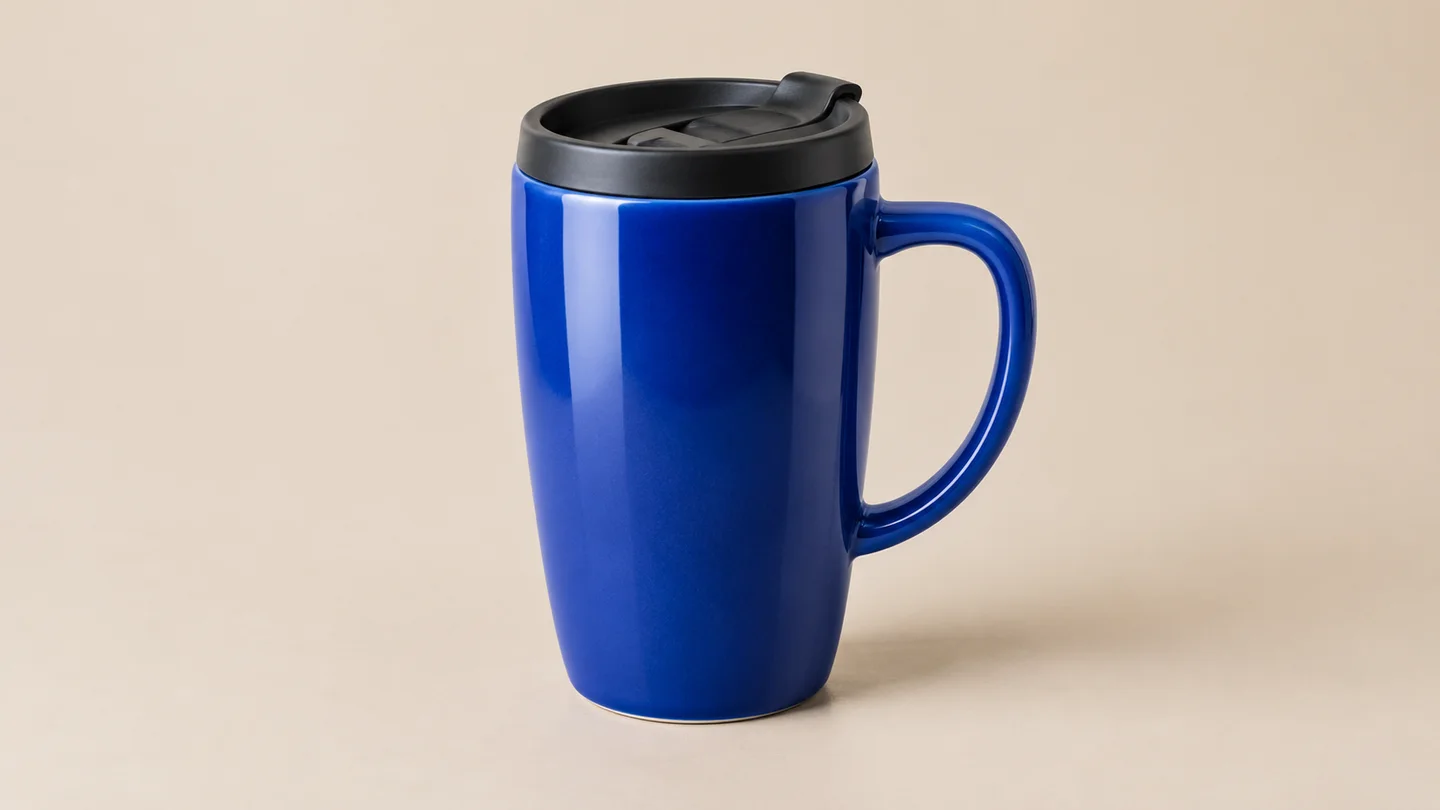
Describe a cobalt travel mug on a neutral studio background, leaving space for a headline. Use the scene to explore an advertising direction before checking the actual product details.
SugarCube image creation
Set up your prompt and optional references here, then click Create. Studio starts generation automatically and keeps your results together; sign in first if needed.
Describe the subject and setting; add references if useful.
Check model, ratio, quality and cost. Generate continues in Studio, with sign-in if required.
Review the result in Studio, then download.
Describe a cobalt travel mug on a neutral studio background, leaving space for a headline. Use the scene to explore an advertising direction before checking the actual product details.

Arrange food stops, landmarks and a legend in a city-map concept. Check every place name and geographic relationship before publishing it as a guide.
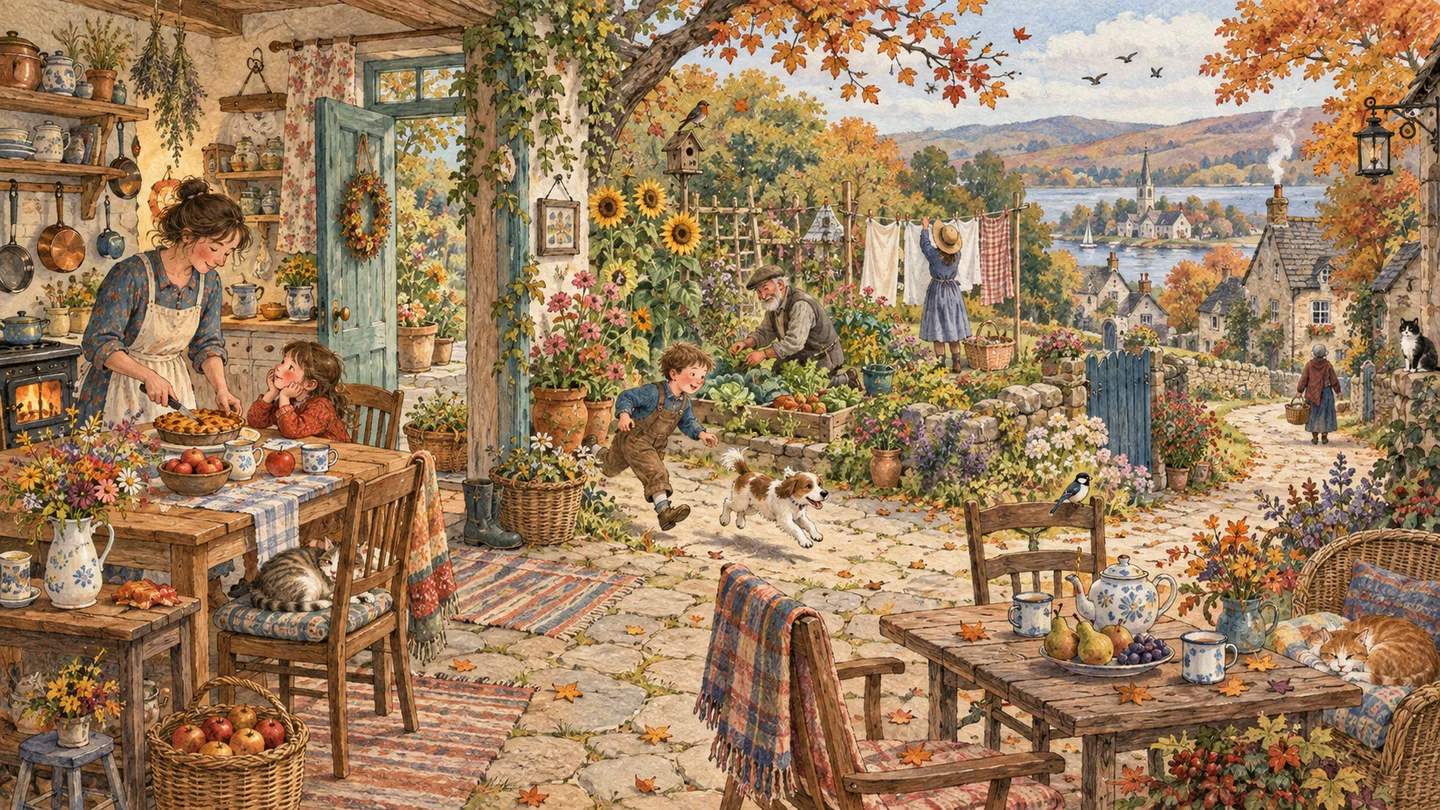
Describe a warm kitchen or garden scene with small narrative details. Choose the drawing style and focal action to support a picture-book spread.
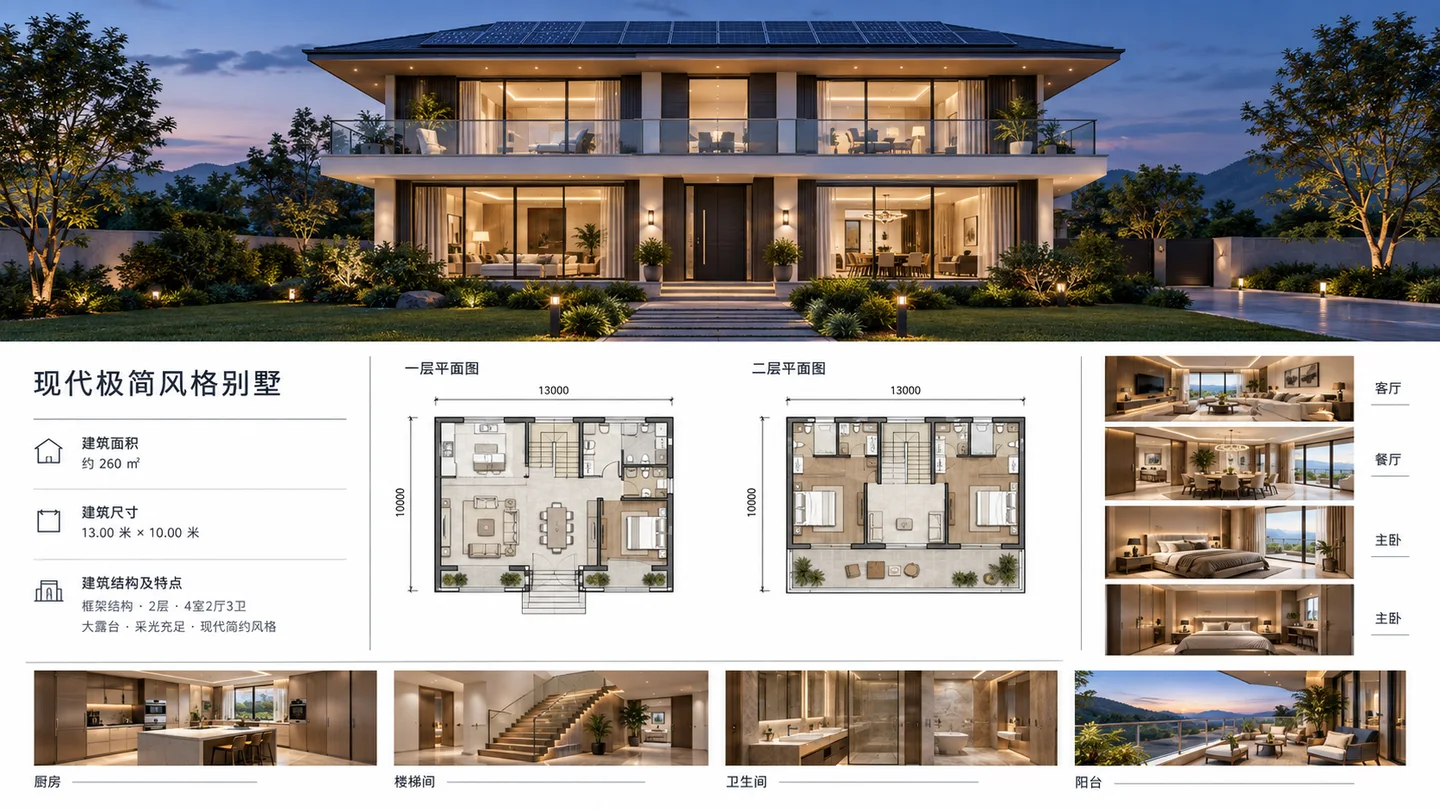
Combine a villa exterior with supporting interior views to discuss materials and mood. Treat generated plans as visual ideas, not construction drawings.
Swipe to explore related tools
Yes. Add a prompt here and click Create. Studio starts generation automatically after sign-in if needed. References are optional.
You can prepare JPG, PNG, or WebP images within the selected model’s active limit. Studio shows that limit before creation.
Studio shows the relevant model cost before you submit a creation. FLUX.2 Flex currently uses 110 credits at 1K or 190 at 2K; FLUX.2 Pro uses 40 or 60.
After creating in Studio, you can review and download results from there.
This page keeps your inputs in the browser until Studio opens. Studio explains processing before creation and keeps generated work in your private account history.
Return with a subject and a clear goal, then check the available settings.
Start your brief