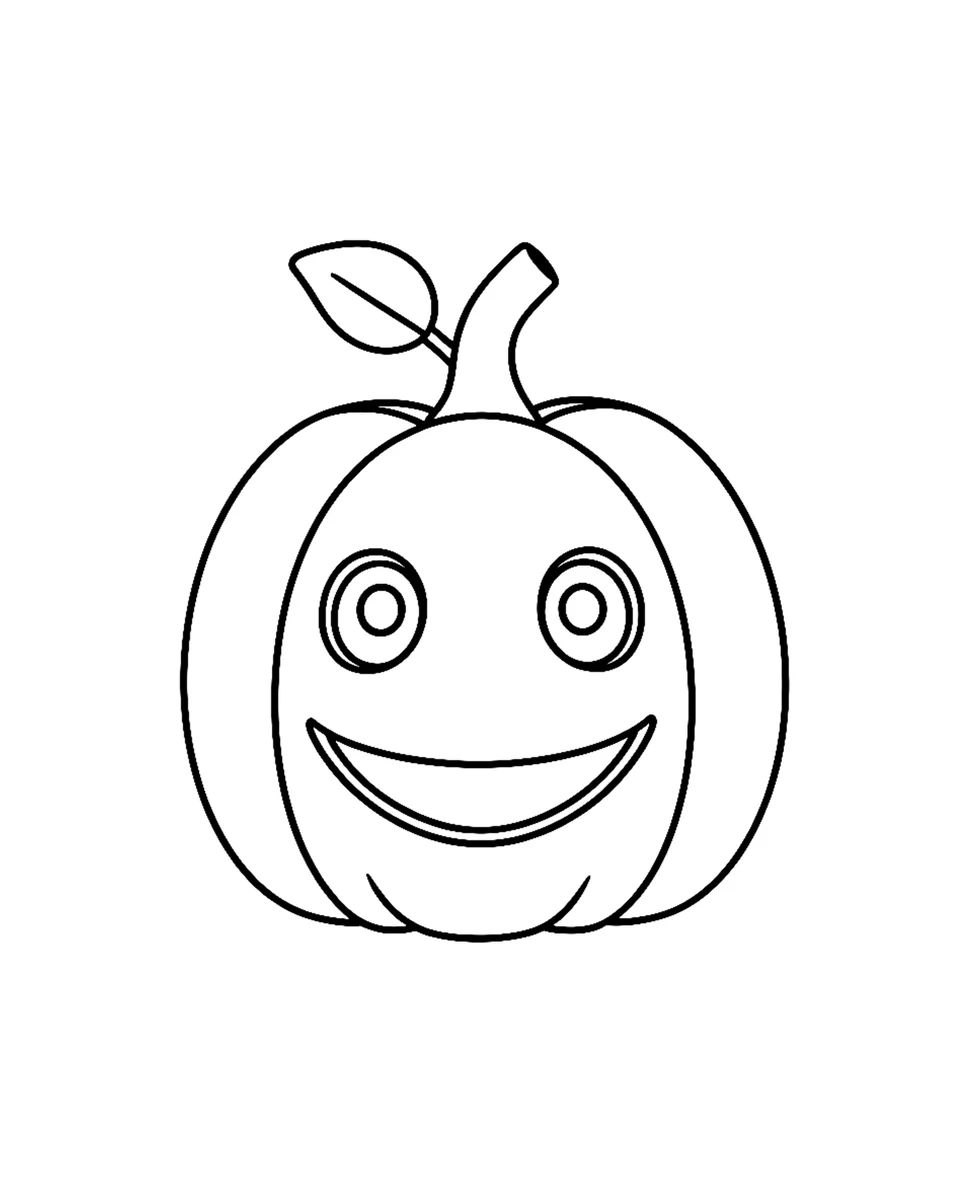
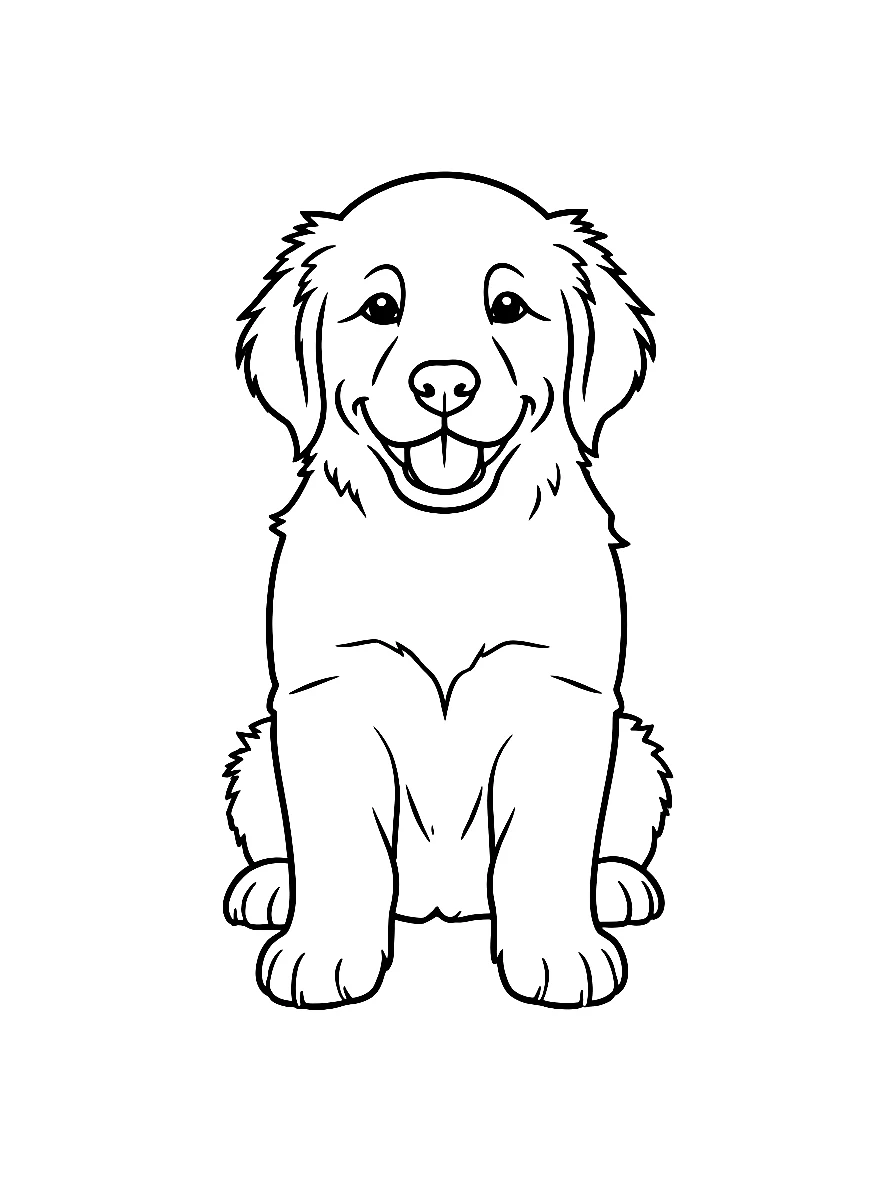
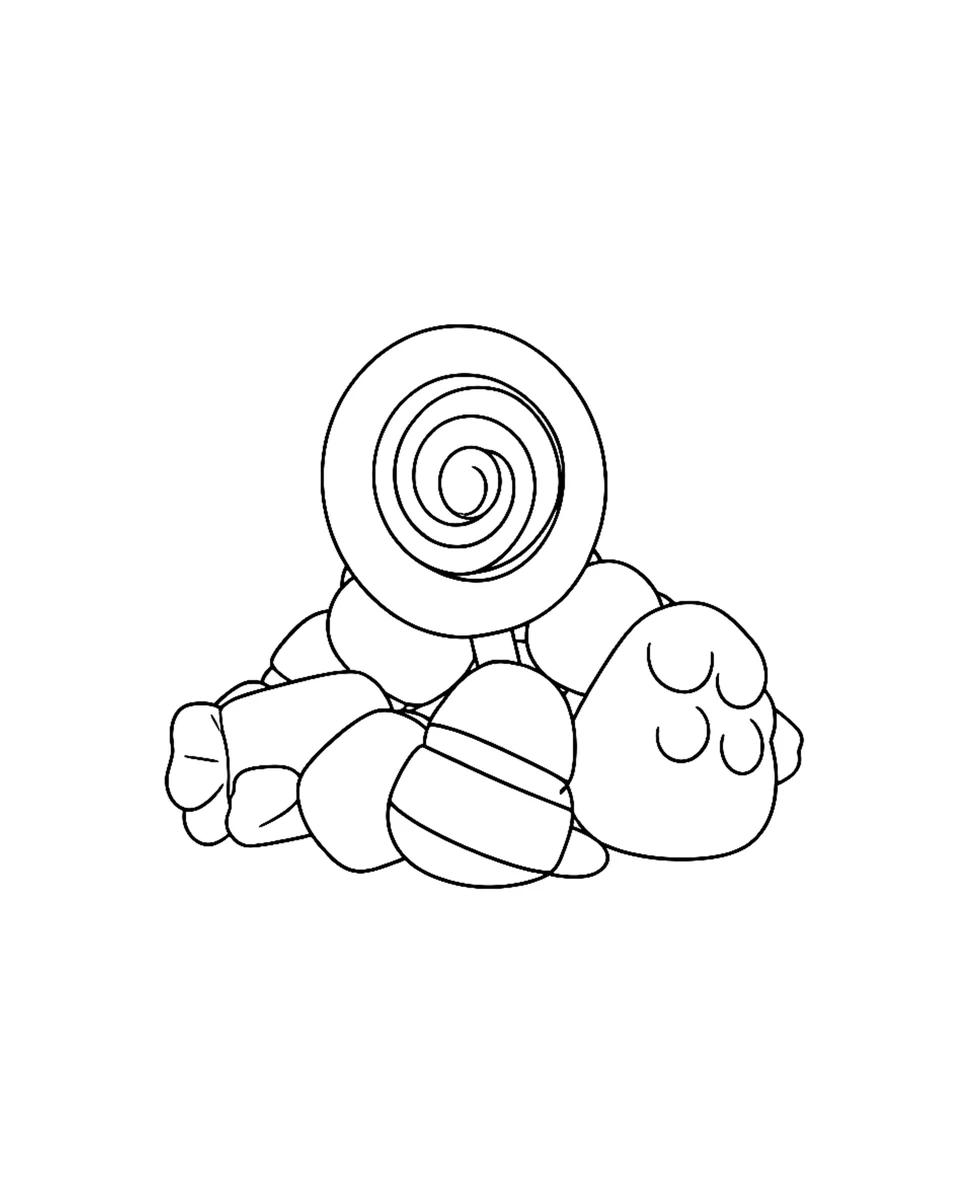
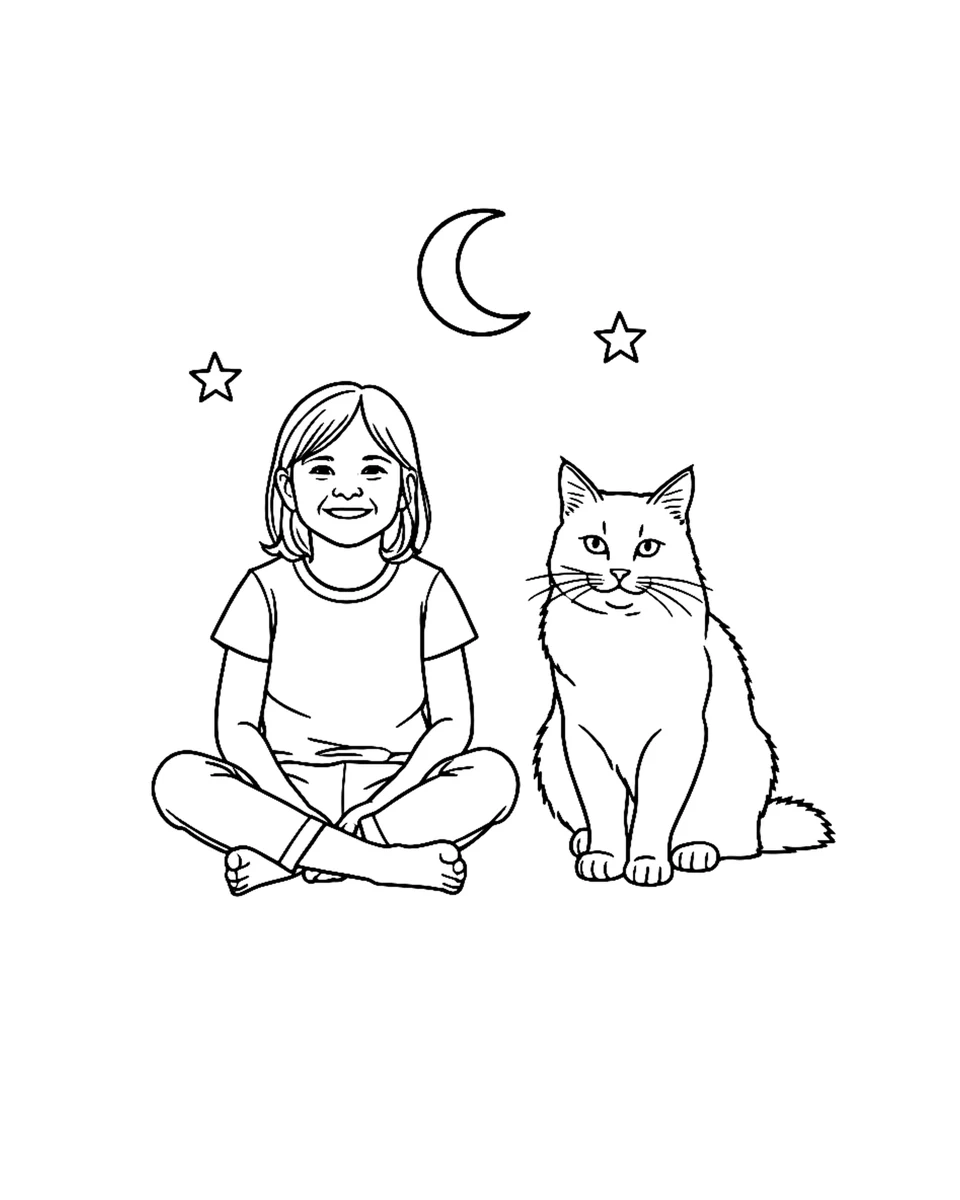
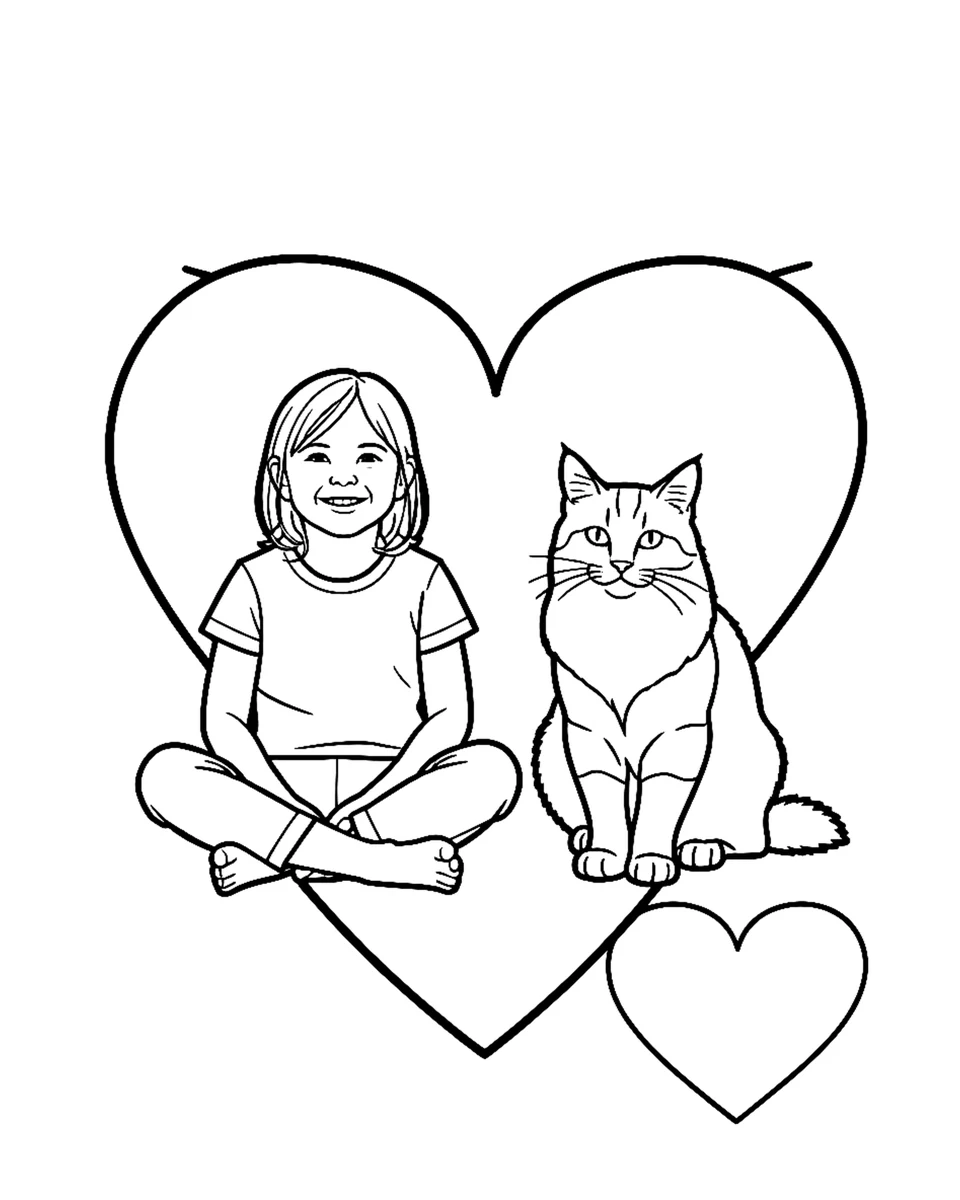
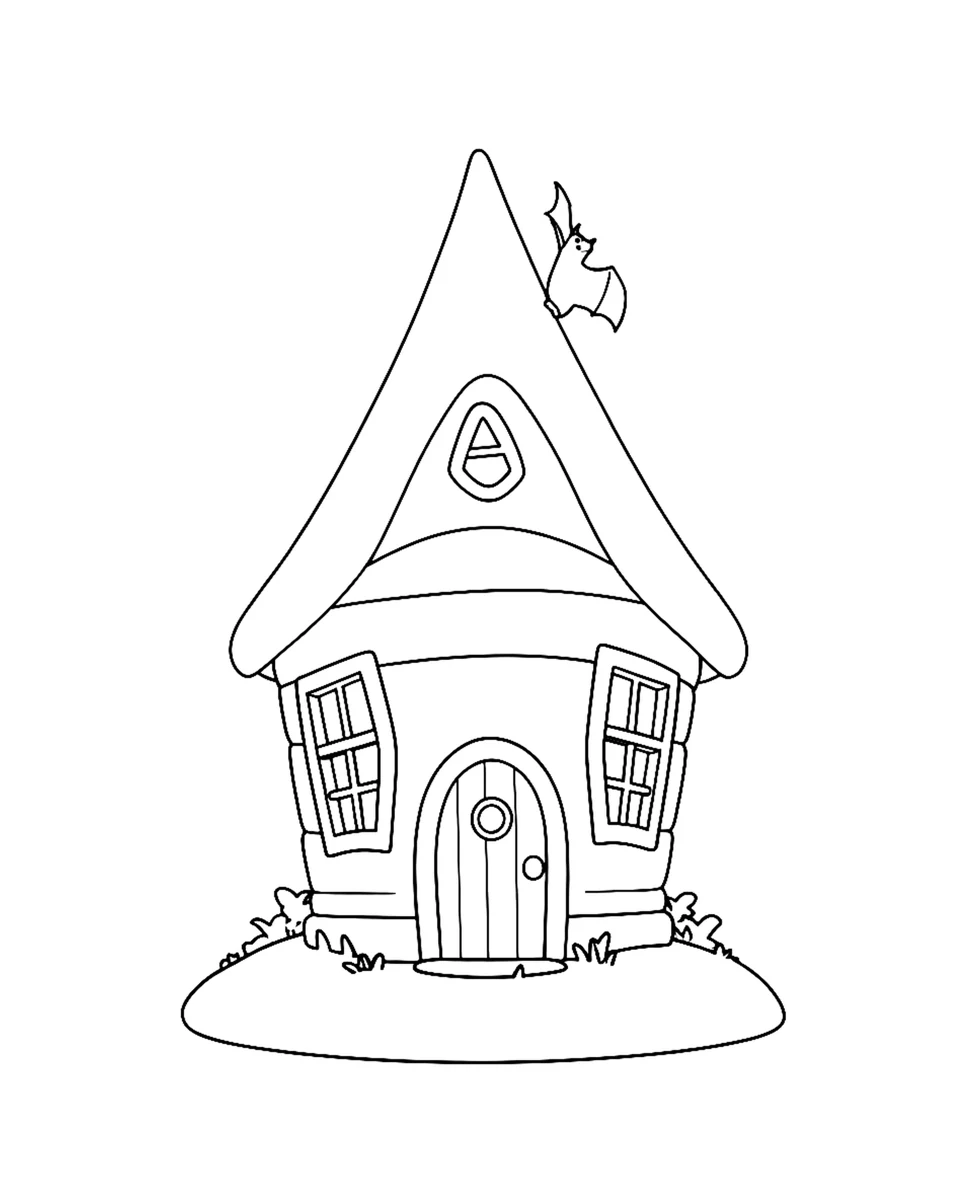
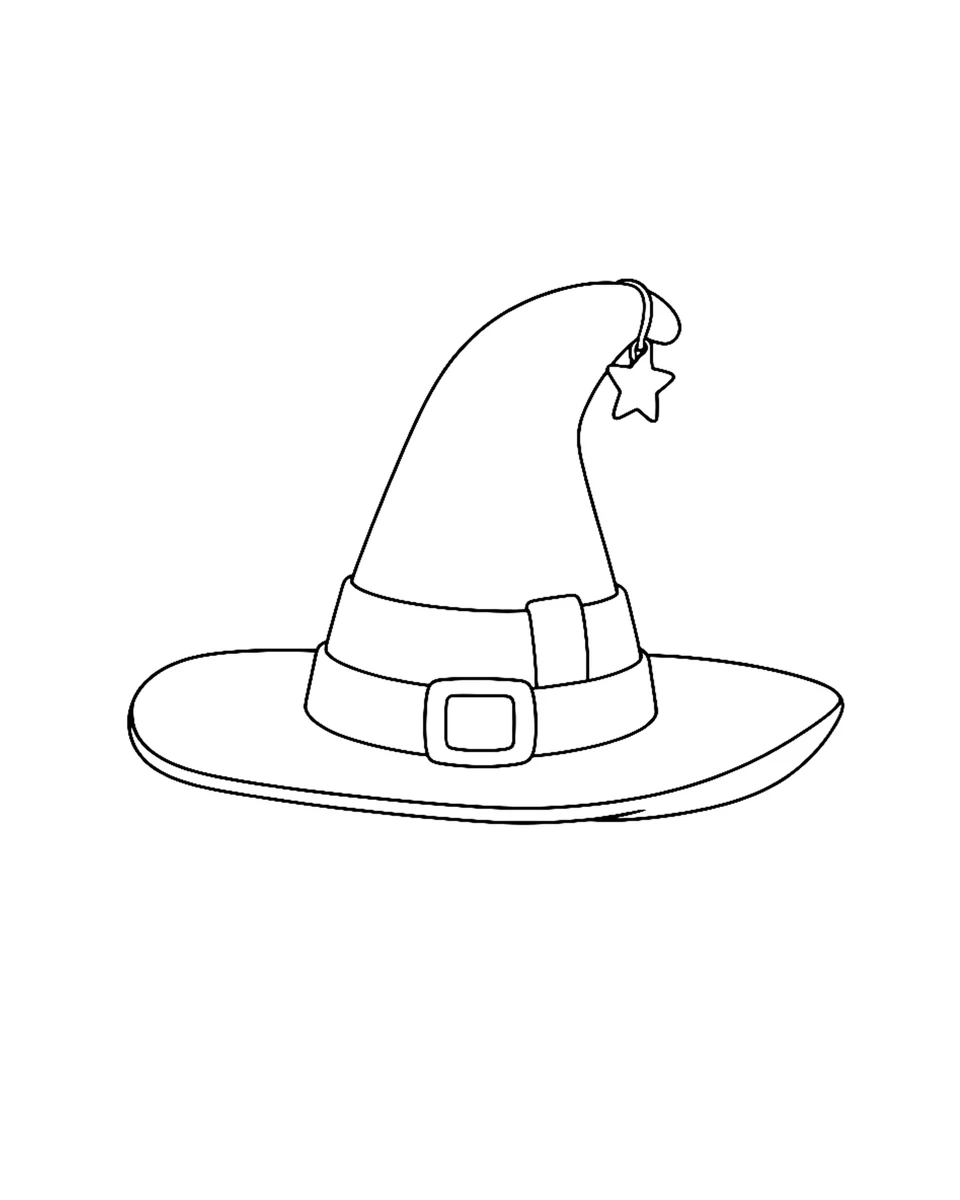
Turn a favorite image into a printable Halloween activity. Upload a photo, choose a coloring style, and take your idea from screen to paper.
Select Coloring Style
Turn a favorite image into a printable Halloween activity. Upload a photo, choose a coloring style, and take your idea from screen to paper.
Generation history
Your coloring pages will appear here with their status, download, and print actions.
Loading older results…
Images are uploaded when you submit. Generation runs in the cloud; your results appear in your account history.
How to create Halloween coloring pages
01
Upload an image
Choose a clear photo, a drawing, or one of the six supplied examples. Keep your subject easy to recognize.
02
Select Coloring Style
Explore 30 style cards, from seasonal decorations to detailed patterns. Select an output proportion supported by the tool.
03
Print / Save PDF
Review your result, download the image, or use browser printing to save a PDF. Check the whole page before printing.
Made for Halloween. Refined through 500+ generations.
More than 500 Halloween coloring page generations informed this focused creative workflow. Explore familiar seasonal subjects, then create a page for a classroom activity, a family craft table, or your own quiet coloring break.
Use a costume photo, a pet, a toy, or your own sketch. Clear subjects and quieter backgrounds help the outlines stay readable. Check the generated image for recognizable features and useful coloring spaces.
Choose Halloween for a seasonal mood, Toddler Minimal for fewer surrounding shapes, or a detailed pattern for a longer session. Find the amount of detail that makes you want to pick up a pencil.
Use A4 or US Letter in your browser print dialog. Choose Fit to printable area and turn off headers and footers. The print view shows only the complete image; generated 1K images may look softer on full-size paper.
Add one clear image, choose the direction available in the tool and start creating.
Which inputs can I use?
Choose the supported input mode. The controls beside each field show accepted formats, dimensions and file limits.
How much does processing cost?
The selected settings show the credit cost beside the create button. Use your account balance to start a task.
Where is my file processed?
Generation processes your submitted prompt and media in the cloud.
Where can I save the result?
The result area provides a preview and Download action when processing finishes.
Print / Save PDF?
Choose A4 or US Letter, portrait orientation, and Fit to printable area. Turn off headers and footers. The print view presents your complete illustration on a clean page.
Make room for a little Halloween magic
Create online. Print a page. Add your favorite colors.