Qwen Image 2.1, now on SugarCube questions
Inputs, supported controls, credit cost, privacy, and recovery—before you start.
What can I do with Qwen Image 2.1 on SugarCube?
Generate from text or use references to guide a new image. SugarCube also provides transparent-background generation and brush or uploaded-mask editing in Studio. This page prepares ordinary text or reference generation; its Create action starts the task automatically in Studio.
How much does Qwen Image 2.1 cost?
The current price is 40 SugarCube credits for 1K or 70 credits for 2K per generation. Check the displayed cost before creating. Subscriptions and credit top-ups are available on the pricing page; this model is not promised as a free trial.
How many references and prompt characters can I use?
Ordinary generation supports up to 10 JPG, PNG or WebP references and a prompt of up to 5,000 characters. Give each reference a clear role. Mask editing requires exactly one reference plus a separate mask; the mask is not a second reference.
How do I generate a transparent PNG?
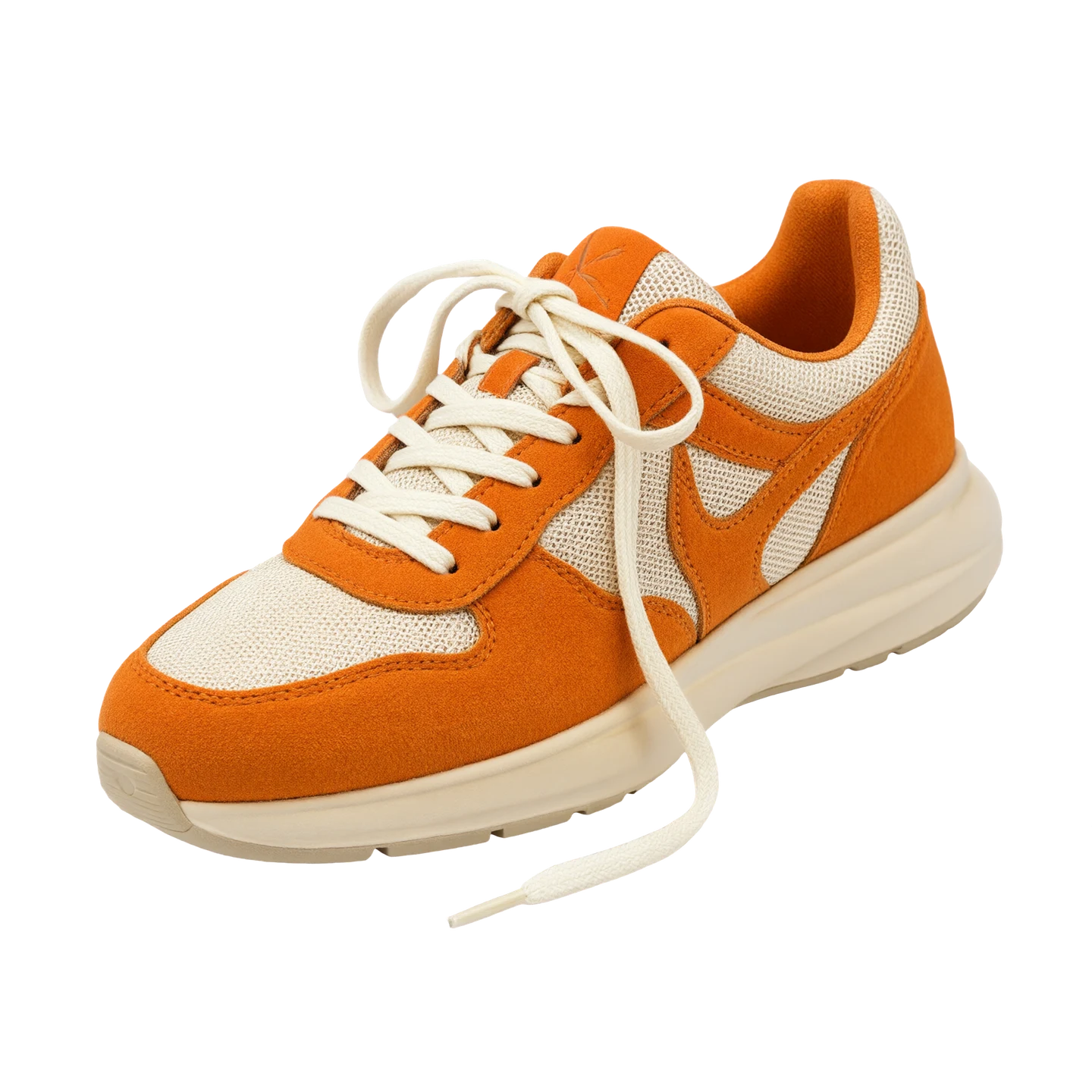
Open Studio directly, select Qwen Image 2.1 and enable Transparent background before generating. The sneaker shown here is an actual Qwen PNG with transparent pixels; the checkerboard is a display aid. Inspect fine edges and partially transparent areas before using a result in a design.
How does mask editing work?
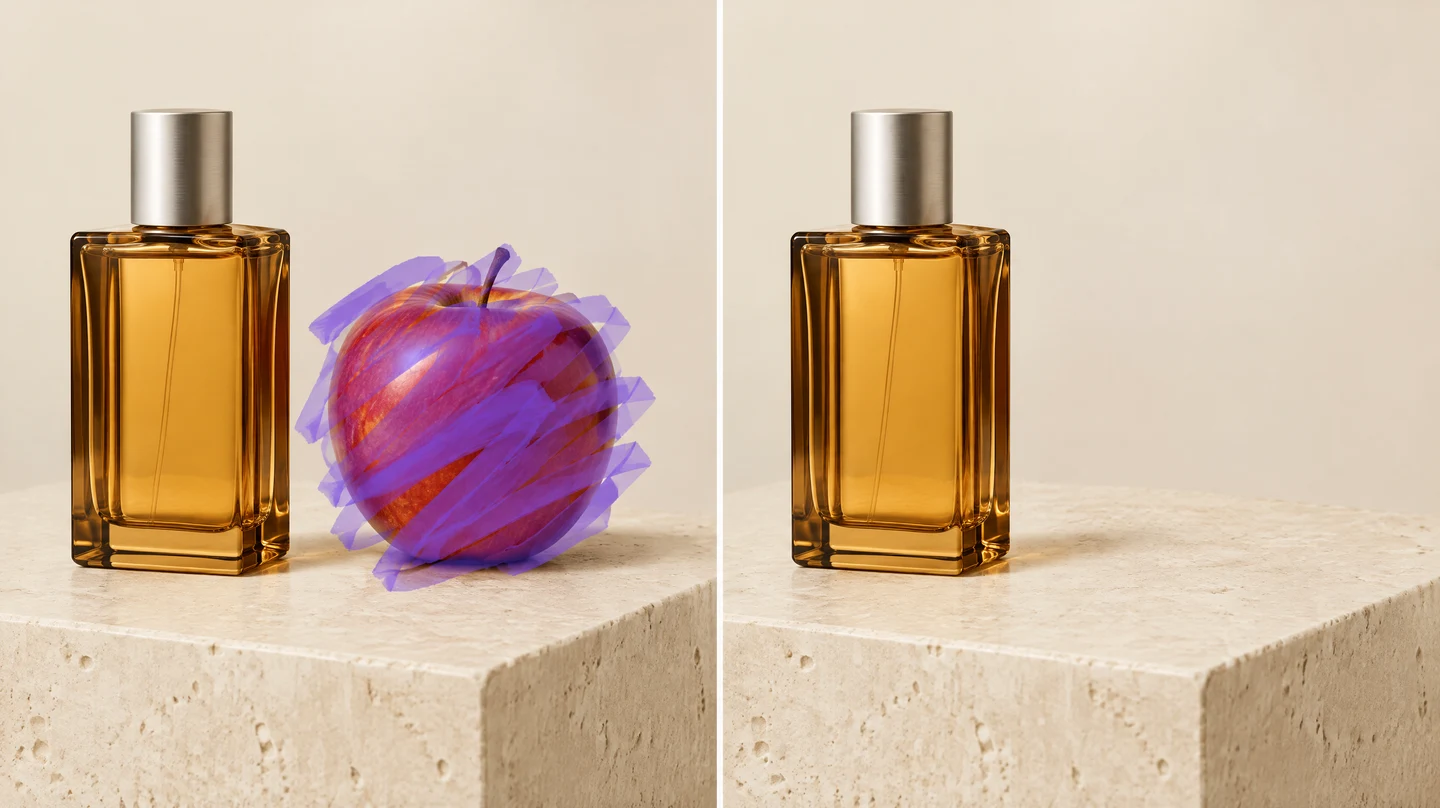
Open Studio, select Qwen Image 2.1 and add one reference. Paint the region or upload a mask matching its proportions: white for editing and black for preservation. Add a specific change prompt. The background must be opaque, and the reference determines the output proportions. Preservation and the final edit can vary.
Are all three examples Qwen results?
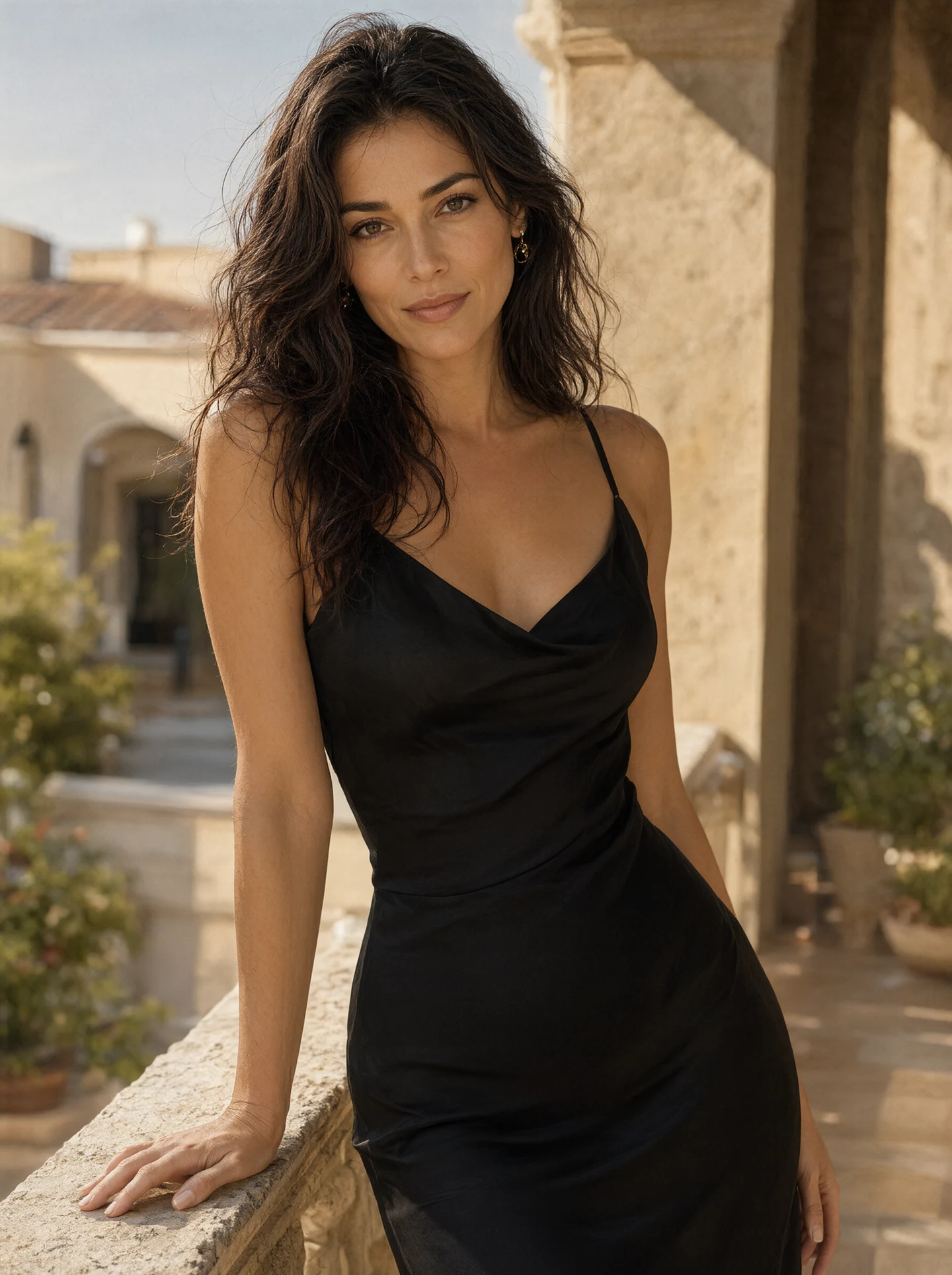
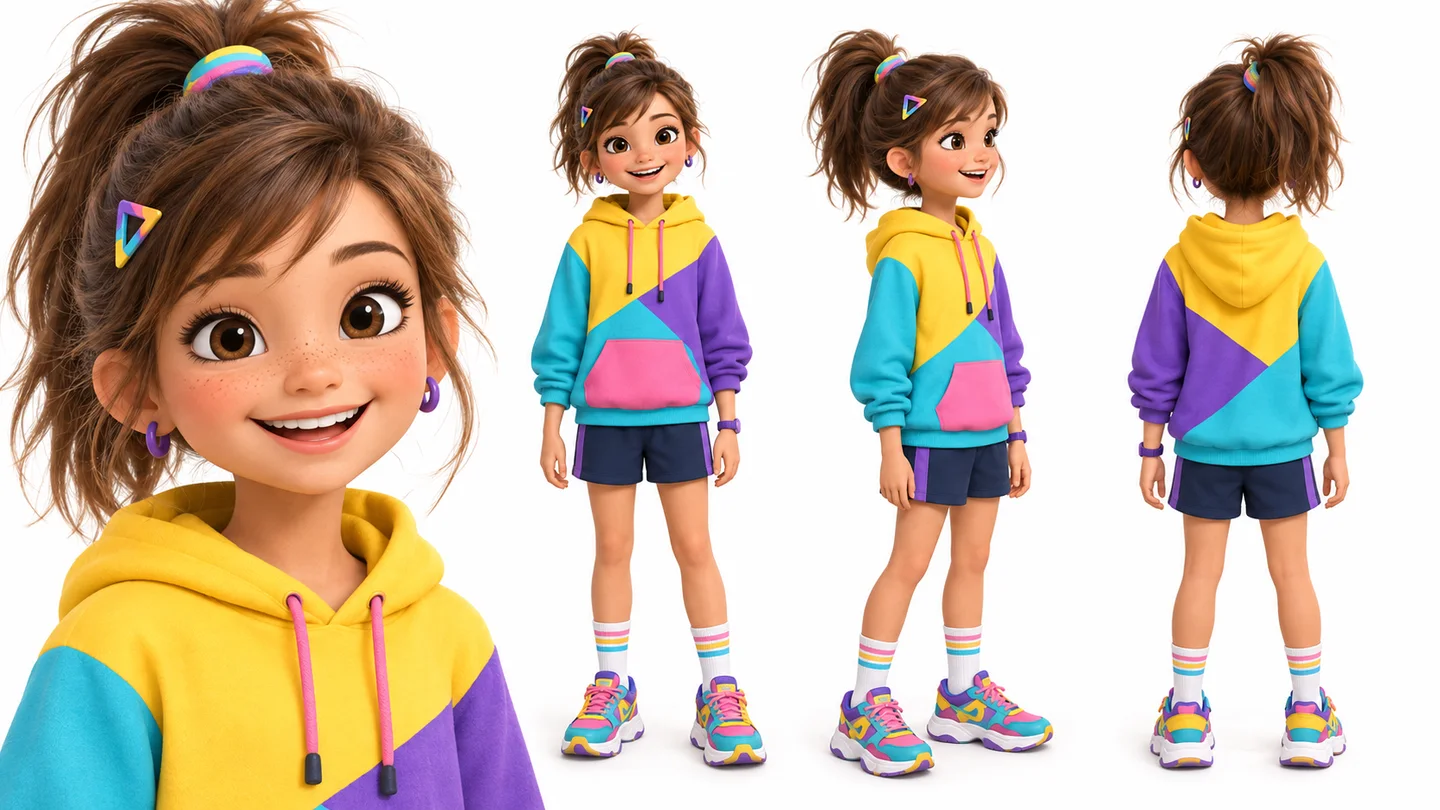
The portrait and transparent sneaker are direct Qwen Image 2.1 outputs. The apple-removal diptych was generated in one GPT Image 2.5 request to illustrate the workflow. It is not an actual two-step edit, a Qwen result or a quality benchmark.
What happens to my uploads and results?
References remain in this browser while you prepare the landing-page draft. After Create, Studio starts processing once you are signed in and inputs are ready; processing sends inputs to the generation service. Results are available through authenticated owner-scoped access. Upload only images you have permission to use and review the privacy policy.
Can I get a refund if I do not like the image?
Failed generations are refunded automatically. A successful image uses credits even if you prefer a different variation. Review faces, hands, product details and generated text before publication; neither reference fidelity nor a perfect local edit is guaranteed.