
이 글의 목차
이 글은 영어로 제공됩니다. 인터페이스 언어: 한국어.
To make a useful AI moodboard, define the project, choose a small set of references, label the decision each represents, and translate those decisions into a brief. Test the direction in one real layout before expanding it.
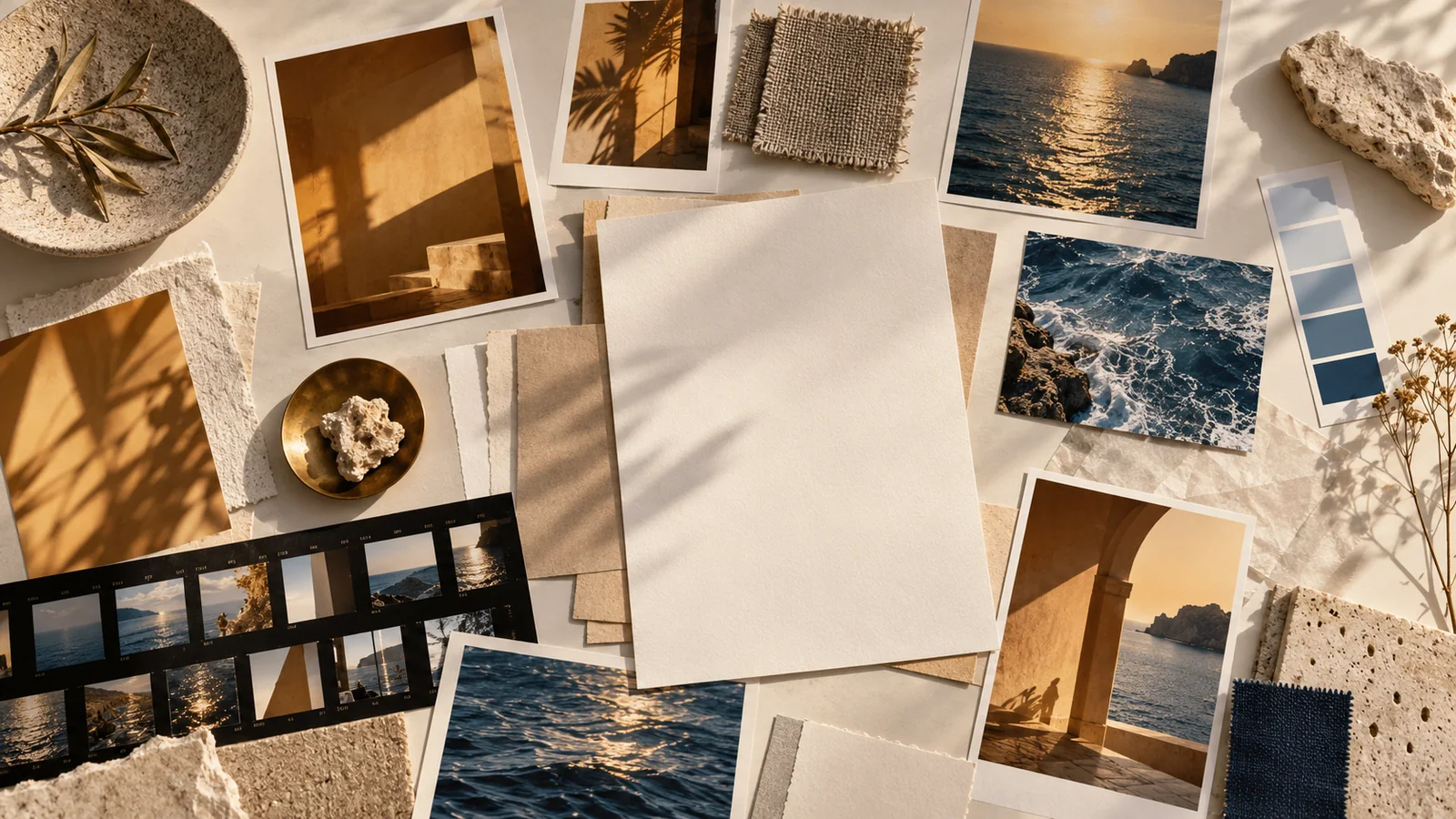
Our reading example is Designer-Grade Brand Moodboard Generation Prompt in the Nano Banana Pro library. Search that exact title to see the supplied board. It is a curated community example, not a SugarCube generation test. The cover is an editorial illustration.
1. Give the board an assignment
A board needs a deliverable and a message. For this exercise, plan a modern technology brand’s launch page and two supporting social images. That assignment is an editorial adaptation of the source’s general “modern tech brand” direction, not a claim about the original creator’s client.
Choose three principles you can inspect: a muted palette, a clear hierarchy of type, and tactile materials that soften the technological subject. A reference belongs only if you can explain which principle it supports. Save its source and permissions alongside it before uploading or publishing.
2. Read what the source prompt actually specifies
The YouMind source entry supplies this prompt:
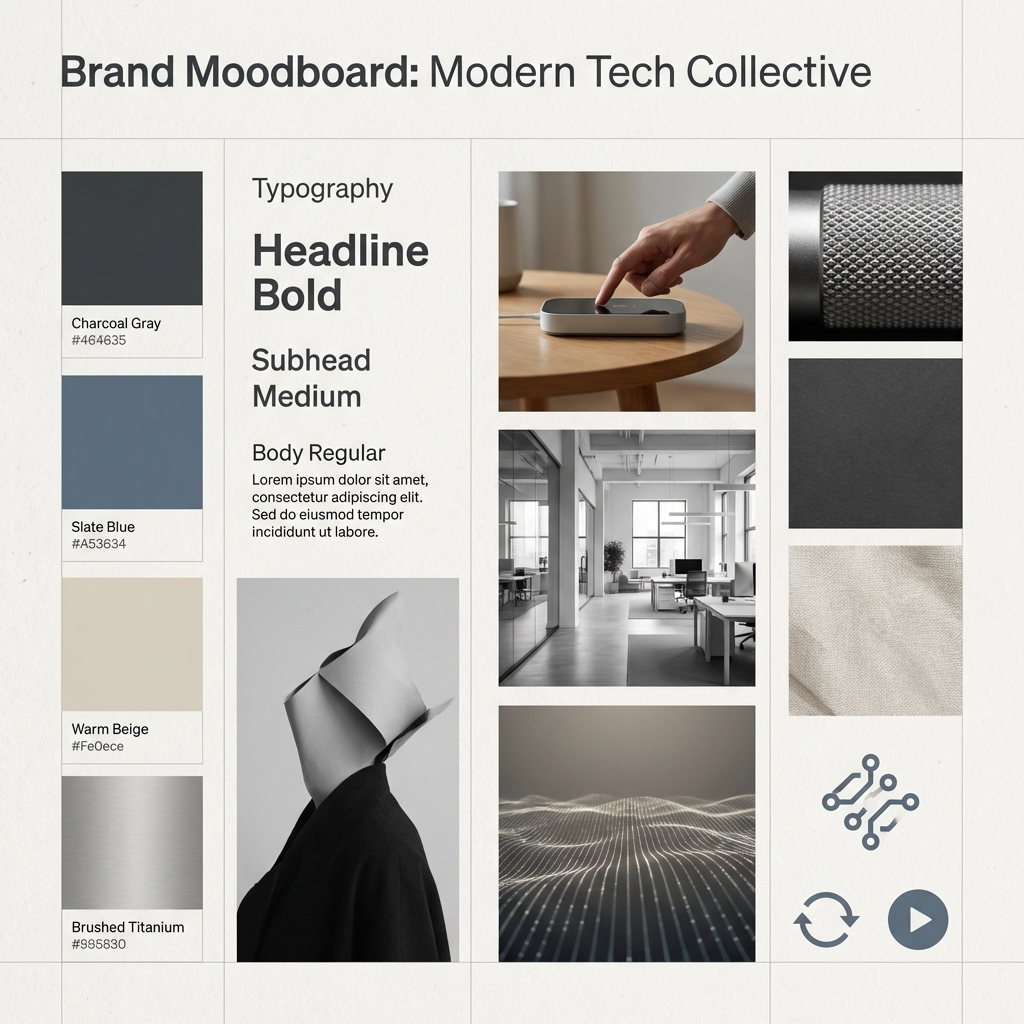
Curated brand moodboard for a modern tech brand.
Balanced grid layout, tactile textures,
editorial photography references,
muted premium color palette,
typography-forward composition,
crafted like a senior brand designer’s internal deck.
The supplied board is titled Brand Moodboard: Modern Tech Collective and combines gray, blue, beige, and metallic colors with material samples, photography, icons, and typography. It contains Lorem ipsum. Treat that as a layout placeholder; small color labels and other fine text have not been independently proofread here.
The prompt gives a visual direction, but leaves the actual product, audience, exact typefaces, and final copy open. Resolve those in your brief rather than copying every tile as an approved brand system.
3. Organize a six-slot board
- Light: one example showing direction and softness.
- Palette: a dominant color, a supporting neutral, and a small accent.
- Materials: surfaces that should recur, such as brushed metal or textured paper.
- Subject: the product, people, or scene the project actually needs.
- Composition: a subject zone and a calm area for text.
- Layout test: an image and real headline at the intended crop.
Add one sentence below each: “Borrow the soft side light, not the product design.” This distinction is more useful than “love the vibe.” One reference can fill two roles, but contradictory light or palettes should not silently compete.
4. Make color and layout a hierarchy
Display swatches in unequal areas. A mostly gray board with a little blue communicates a different balance from six equal colors. Put a material sample beside each important tone so “metallic” describes a surface rather than a blanket effect.
Test the longest real headline in a rough page layout. A blank-looking area may still contain a bright edge that interferes with type. Review the layout in grayscale to check separation, then at phone size to check whether the focal point and headline still read.
A wide hero and a vertical social image may require different compositions. Record both instead of forcing one crop into every placement.
5. Translate decisions into a brief
This is an editorial practice brief, not the original prompt or a tested output:
Create a visual direction for a modern technology brand launch.
Use a restrained gray and warm-beige field with small muted-blue accents.
Combine tactile paper and brushed-metal surfaces with quiet editorial imagery.
Keep the visual hierarchy clear and the background secondary.
For the launch-page hero, reserve a calm area for a headline added later.
Adapt the subject placement for the actual output crop. No generated brand lettering.
Replace the subject and material choices with your project’s decisions. The image-prompt template helps specify a single frame without losing the broader direction.
6. Test one image in one layout
Open the AI image workspace to try a written direction. If several references are necessary, use the multi-reference image generator with files you have permission to upload, explaining what each contributes. Inspect available controls before submitting; a library’s historical model label does not guarantee current availability.
If the image is cohesive but too busy for type, revise composition. If the palette works but the finish is glossy, revise materials. Keep a useful accepted version and change one major decision at a time. To turn the direction into a sequence, continue with the eight-panel storyboard guide.
Source note: the linked YouMind OpenLab libraries preserve the original prompts and provenance. The planning exercises and review observations here are editorial analysis, not generation tests.
만들기
Build an AI moodboard with six slots for light, palette, materials, subject, composition, and layout, using a real brand template as a reading exercise.
여러 참조 이미지로 만들기AI 이미지와 동영상 제작을 위한 실용적인 가이드, 창작 아이디어와 관점을 공유합니다.
이런 글도 읽어 보세요
다음 프로젝트를 위한 또 다른 아이디어를 만나보세요.
How to Plan a Consistent AI Storyboard in 8 Panels
Plan an AI storyboard with an eight-panel lemon-drink example, a visual bible, shot roles, and continuity checks. Separate a storyboard image from a video.
An AI Image and Video Quality Checklist Before Publishing
Review AI images and video before publishing. Check composition, product accuracy, text, motion, and exports, with a real poster constraint counterexample.
Welcome to the SugarCube Journal
Explore practical guides to AI image prompts, moodboards, storyboards, product photos, video workflows, and reviewing visuals before publishing.