
この記事の目次
この記事は英語でお読みいただけます。表示言語:日本語。
You do not always need an AI video model to make an animated GIF. There is another approach: ask an image model to generate a sprite sheet, split that image into individual frames, and play those frames in sequence.
The image model creates the artwork. A separate processing step turns that artwork into an animation file. From the user's perspective, the whole workflow can feel as simple as entering “a cute cat waving” and receiving a GIF.
The important distinction is that the model is not necessarily generating a moving image directly. It can be generating one still image containing several different moments of an action.
Where GPT Image 2.6 fits into the workflow
You can try this sprite-sheet method with GPT Image 2.6 in a tool that offers it: request one still image containing the animation frames, inspect the grid, then split and encode it using the steps below. OpenAI also documents native animated GIF output for GPT Image 2.6; the manual sprite-sheet route in this guide is useful when you want to inspect the poses and control the assembly yourself. The output options exposed by each tool can differ. See the official image-generation guide.
SugarCube availability: GPT Image 2.6 Economy is available at 1K. To follow this manual workflow, create a PNG sprite sheet in Studio, then inspect and assemble it separately. For direct GIF output, open the text-to-GIF generator and describe the animation without reference images. PNG editing accepts up to 16 reference images; SVG, markup, complexity, and frame-timing controls are not currently exposed in SugarCube.
About the examples: the two animations below are supplied AI-generated examples whose underlying model version was not recorded. They demonstrate frame order, timing, and visible loop restarts; they are not labeled as GPT Image 2.6 test results.
Here is an AI-generated example of the result:
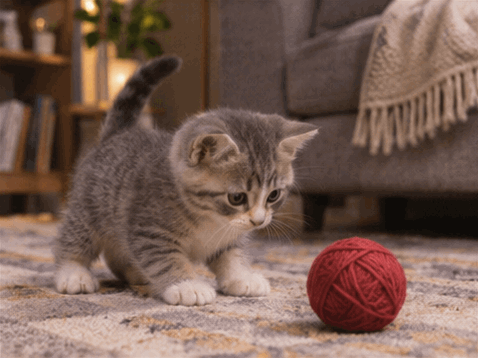
Example: nine frames, 478 × 358 pixels, 160 milliseconds per frame. One playback cycle lasts 1.44 seconds. The file is set to repeat indefinitely; its restart is visible rather than perfectly seamless. On this page, playback starts only when you press Play.
This guide explains how the method works, provides a sprite-sheet prompt you can copy, and shows what to check before turning the images into a GIF.
What is a sprite sheet?
A sprite sheet is a single image that contains several smaller images. Those smaller images might be icons, character poses, or individual animation frames. MDN describes image sprites as collections of images combined into a single image file.[1]
For an animation, each cell contains a different point in the same action. Imagine a digital flipbook: one frame shows a paw at rest, another shows it lifting, and another shows it moving sideways.
A common starting layout is a 3 × 3 grid containing nine frames. Read the frames from left to right, then move down to the next row:
Frame 1 → Frame 2 → Frame 3
Frame 4 → Frame 5 → Frame 6
Frame 7 → Frame 8 → Frame 9
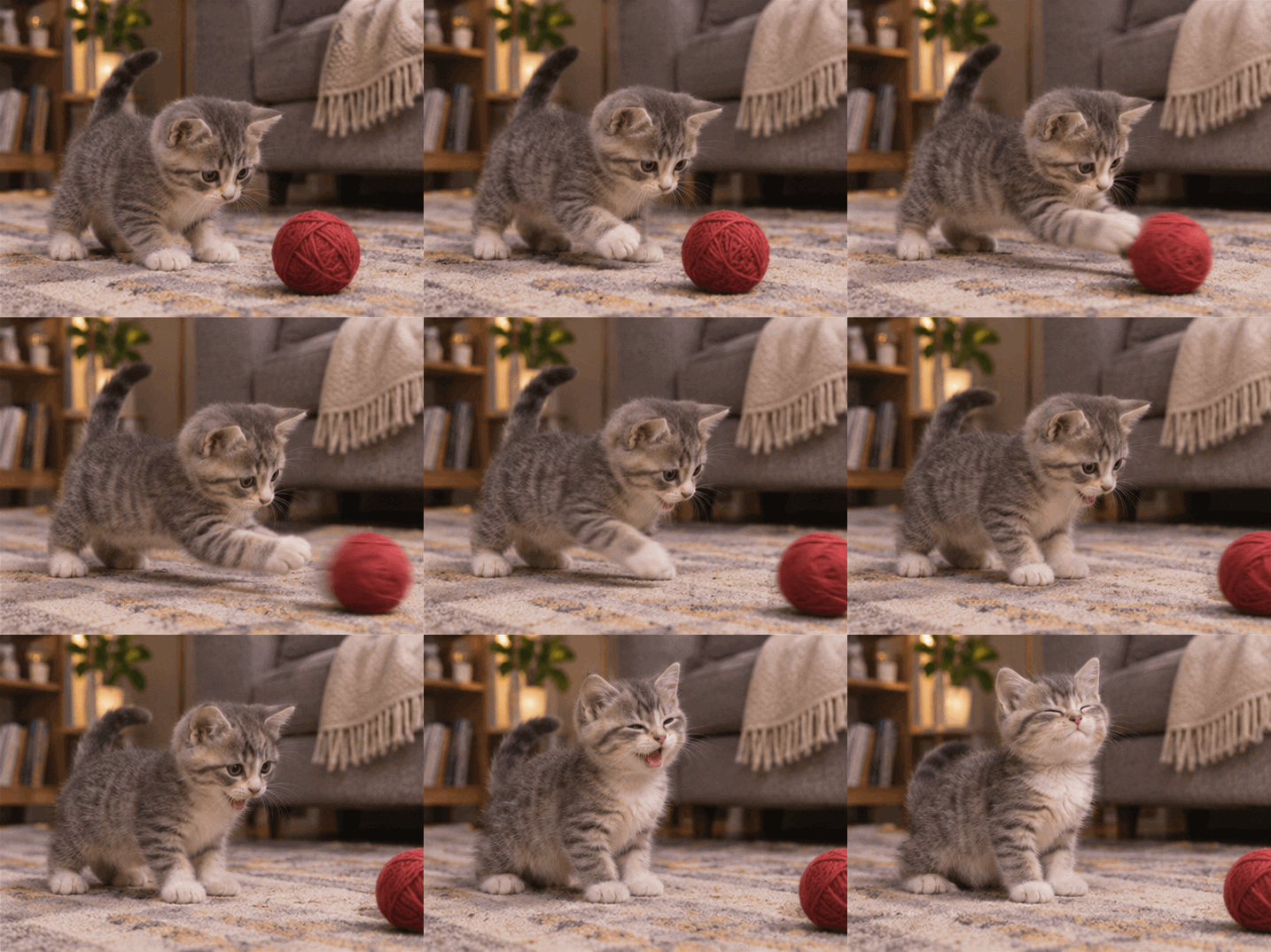
Frame map for the kitten GIF above. This explanatory contact sheet was reconstructed from the GIF's decoded frames, so the pictured sequence matches the animation. It is not presented as an untouched original model output.
The difference between an animation sprite sheet and a collage is continuity. Nine unrelated cat pictures make a slideshow. Nine related poses of the same cat can suggest one continuous action.
How does an AI GIF generator use a sprite sheet?
The workflow has four stages:
User's animation idea
        ↓
Animation instructions + layout requirements
        ↓
AI-generated sprite sheet
        ↓
Crop frames → set timing → encode GIF
For example, a user might write:
A cheerful little cat waving hello.
Behind the scenes, an application adds instructions about the layout, the character's appearance, the camera, and how the action changes between frames. The model then attempts to draw the sequence in a single image.
An image-processing library crops each cell. A GIF encoder stores the frames with their playback timings and repeat settings. Sharp supports rectangular extraction and resizing; FFmpeg provides GIF output and palette-processing tools for the encoding stage.[2][3][4]
AI handles the visual content. Ordinary software handles the assembly.
This is different from generating a video clip and converting that video to GIF. Both routes can produce a .gif file, but the source material and quality constraints are different. In the sprite-sheet route, the small number of poses and the accuracy of the grid are especially important.
How to make an AI GIF, step by step
1. Open GPT Image 2.6 and choose one simple action
In SugarCube, open GPT Image 2.6 Economy in Studio and keep PNG output selected for this sprite-sheet exercise. The output is fixed at 1K; splitting and encoding the sheet remain separate steps in this tutorial. Start with an action that is easy to recognize across a handful of poses. Our suggested first tests are a wave, a blink, a gentle bounce, or a small side-to-side movement.
A focused idea gives the model fewer things to coordinate:
A small orange robot blinking its screen eyes and gently tilting its head, fixed camera, plain background.
Compare that with:
A robot runs through a city, jumps onto a moving bus, changes into a dragon, and flies past the camera.
The second request involves several actions, locations, and changes in viewpoint. For a nine-frame experiment, simplify the idea before adding more frames.
A useful starting formula is:
[Subject] + [one action] + [visual style] + [simple setting]
The user-facing prompt can stay short. The detailed animation instructions belong in the template applied by the tool, or in the full prompt you paste into an image generator.
2. Add a reusable sprite-sheet prompt
Here is a copy-ready template for a square, nine-frame animation. Replace the text in braces before using it.
Create ONE animation sprite sheet containing exactly nine sequential
frames in a precise 3-row by 3-column layout.

Animation idea:
{Describe the subject, one action, visual style, and setting.}

Layout:
- Use nine equally sized square cells.
- Fill the entire square image with this 3×3 layout.
- Arrange time from left to right, then top to bottom.
- Do not draw grid lines, borders, margins, gaps, labels, or numbers.
- Do not place a separate hero image outside the grid.

Consistency:
- Keep the same character, proportions, clothing, colors, and props.
- Keep the camera, framing, background, and lighting fixed.
- Keep the entire moving subject inside its own cell.
- Leave enough room around the subject for the complete movement.

Motion:
- Show one small action progressing across all nine frames.
- Use modest pose changes between neighboring frames.
- Keep stationary parts of the scene in the same positions.
- Do not repeat the same still image nine times.

Loop:
- Design the movement as one repeating cycle.
- Make the transition from frame nine back to frame one a small,
  natural continuation of the movement.
- Avoid duplicating the first pose as an unnecessary extra end hold.

Return only the sprite-sheet image.
For the waving-cat idea, you could add this more specific motion instruction:
The cat keeps its right forepaw raised for the whole sequence and waves that same paw gently from side to side. Keep the other forepaw, head, and torso nearly still. Sample nine evenly spaced moments of one repeating wave.
That is more actionable than “make it animated.” It describes what changes, what stays still, and which limb performs the movement.
In a product, these instructions can be managed as a reusable backend template. Not every image API provides a separate system-message field, so an implementation may need to combine the template and user description into the supported prompt field. The key is the instruction structure, not the field name.
3. Inspect the grid before converting it
Do not assume that an image containing nine visible panels is ready to animate. Check that the cells are evenly sized, the action progresses in the intended order, and the character remains consistent.
Pay particular attention to edges. A paw crossing into the next cell will be cut off when the image is split. A decorative white border may flash around the finished GIF. An extra caption can become part of a frame.
Precise cropping cannot repair an incorrectly drawn grid. It also cannot fix changing faces, extra limbs, or an object disappearing between poses. Those are artwork problems, not GIF-encoding problems.
For an early test, review the contact sheet at a comfortable size before spending time on export settings. Regenerate an unusable sheet rather than trying to hide its problems with a faster frame rate.
4. Split the sprite sheet into individual frames
For a perfectly aligned 3 × 3 sheet measuring 1536 × 1536 pixels, each cell is 512 × 512 pixels. A 768 × 768 sheet gives you 256 × 256 cells. These dimensions follow directly from dividing the sheet's width and height by three.
Use an image editor, a sprite-sheet splitter, or a server-side image-processing library to extract the cells in row order. Sharp's extract operation crops a rectangular region, and resize can then normalize the output dimensions.[2]
If the image dimensions are not divisible by three, calculate shared boundaries rather than repeatedly rounding a single cell width:
left   = floor(column × image_width / 3)
right  = floor((column + 1) × image_width / 3)

top    = floor(row × image_height / 3)
bottom = floor((row + 1) × image_height / 3)
Here, column and row run from 0 to 2. Each crop extends from its left/top boundary to the next right/bottom boundary. This accounts for every source pixel; it does not correct panels that the model drew in the wrong places.
After cropping, normalize every frame to the same output size. Preserve the original proportions: stretching a landscape frame into a square changes the shape of the subject. Use a deliberate crop or padding strategy instead.
5. Set the speed and encode the GIF
The timing determines how long each pose remains visible. For equal-duration frames:
Cycle duration = number of frames × duration of each frame
Nine frames held for 160 milliseconds each give a 1.44-second cycle. Nine frames played at a nominal six frames per second give approximately 1.5 seconds.
Here is a developer-oriented example using FFmpeg. It assumes you already have nine same-size PNG frames named frame_000.png through frame_008.png in a frames directory:
ffmpeg -y \
  -framerate 6 \
  -start_number 0 \
  -i frames/frame_%03d.png \
  -filter_complex "[0:v]split[a][b];[a]palettegen[p];[b][p]paletteuse" \
  -loop 0 \
  output.gif
The palettegen and paletteuse filters build and apply a color palette. The GIF output's -loop 0 option enables continuous repetition.[3][4]
A repeat setting does not make the motion seamless. It only tells the player to start again after the last frame. If the final pose differs sharply from the opening pose, that restart remains visible.
You do not need to use the command line when a tool provides frame splitting and GIF export. The command simply makes the otherwise hidden assembly step explicit.
6. Review the animation, not just the first frame
Play several cycles. Watch the subject's outline, stationary objects, and the transition back to the beginning.
Ask whether the action reads clearly at the size where you will actually display it. A small reaction graphic may not need realistic movement; a product demonstration may need much greater continuity.
Changing playback speed can help you find a readable rhythm, but it does not add missing poses. If the action jumps from a raised paw straight to a lowered paw, a faster export is still missing the movement in between.
Real examples: what works and what still needs improvement
The examples in this article are actual animated files, not still images with a GIF badge. Both use nine frames and share the same 478 × 358 output dimensions. They illustrate the method, not a guarantee of polished animation from every request. This page displays lossless animated WebP versions with the original frames and timing, static posters, and play/pause controls.
A kitten playing with a ball of yarn
The opening example has one main subject and one obvious action. The kitten reaches for the ball, bats it away, then changes its expression.
Its limitation is equally useful: the ball moves toward the edge of the scene, so replaying the sequence resets the action. That makes it a repeating clip, not an invisible loop.
For a more loop-friendly version, try a motion that returns naturally: the kitten could gently tap a suspended toy as it swings back and forth, rather than pushing a ball away and leaving it there.
A cat chef flipping a pancake
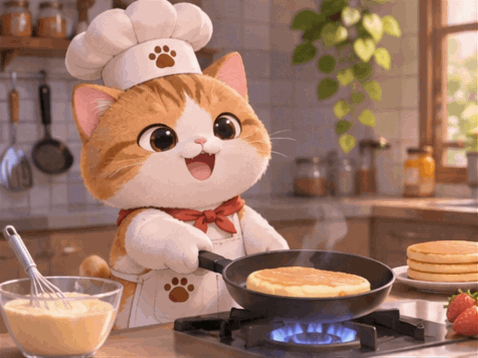
Nine frames, 478 × 358 pixels, 150 milliseconds per frame: a 1.35-second playback cycle.
This example adds a moving prop. The chef lifts the pan, the pancake rises, and the food returns toward the pan. The broad action is recognizable, but the trajectory and final celebratory pose create more opportunities for discontinuity.
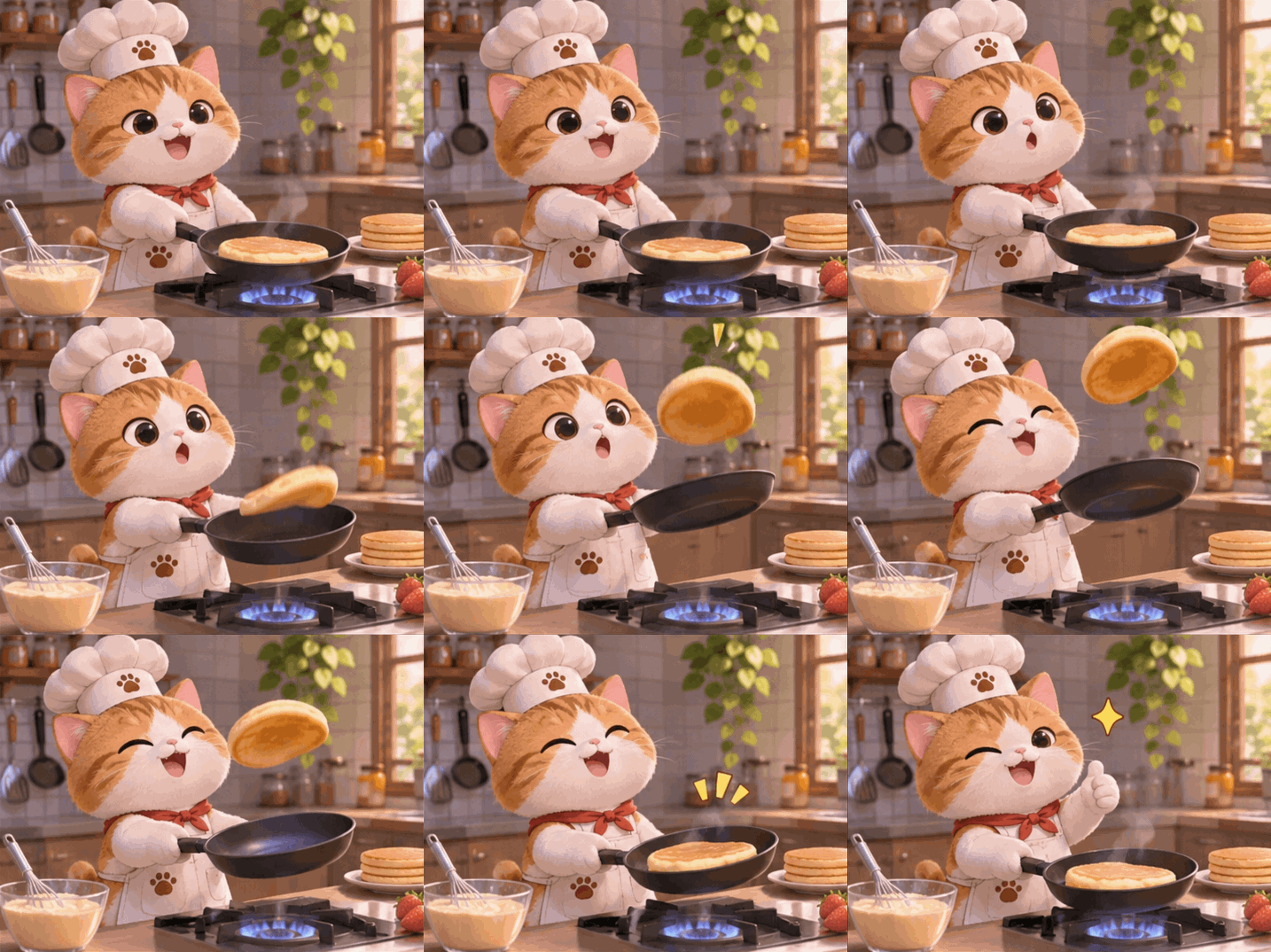
The contact sheet is reconstructed from the animation's decoded frames. Viewing the sequence this way makes changes in the pancake's position and the chef's pose easier to inspect.
The lesson is practical: a simple-looking request can still contain several independently moving parts. Begin with one small motion, then introduce props and gestures once the basic sequence works.
Starter settings for your first sprite-sheet GIF
These are suggested trial settings, not a claim that one configuration works best for every model.
| Setting | Suggested starting point | Reason |
|---|---|---|
| Grid | 3 × 3 | A compact sequence that is easy to inspect |
| Frame count | 9 | Enough poses for a first small-motion test |
| Frame shape | Square | Convenient for a small standalone graphic |
| Output size | 256 × 256 | A modest size for testing before larger exports |
| Playback | Approximately 6 frames per second | A starting rhythm to adjust after previewing |
| Background | Plain or mostly stationary | Makes unintended changes easier to spot |
| Camera | Fixed | Avoids adding camera movement to the problem |
The two landscape demos above retain their original proportions and use slightly different timings. The table is a recommendation for a new test, not a description of those files.
Resolution also needs planning. A 1536 × 1536 image divided into a 3 × 3 grid supplies 512 × 512 pixels per cell. Requesting a 512-pixel export from a much smaller cell requires upscaling; it does not turn the source into a genuinely higher-detail animation.
Adding more cells has the same tradeoff. At a fixed sheet resolution, a 4 × 4 grid leaves fewer pixels for each frame than a 3 × 3 grid.
Four animation prompts to try
Use these ideas inside the full sprite-sheet template above. They are new starting prompts, not transcripts of the requests used for the displayed demos.
Waving animal sticker
A rounded orange kitten with a red collar, sitting against a plain cream background. Its right forepaw stays raised and makes one gentle side-to-side wave. The other paw, body, and camera remain still. Soft clay-animation style, centered composition, repeating motion.
Bouncing character
A small lavender jelly creature gently bouncing in place on a plain background. Its body compresses near the ground and stretches slightly during the rise. Keep its eyes and smile consistent. The creature stays centered and completes one repeating bounce cycle.
Blinking robot
A tiny friendly robot with a rounded white body and blue screen eyes. Its screen eyes gradually narrow, close, and open again. Keep the robot's body, head position, background, and camera completely fixed. One subtle blink cycle with a clear return to the resting expression.
Floating coffee cup
A small illustrated coffee cup gently bobbing up and down above a stationary saucer. Keep the cup's shape and handle unchanged. Use a plain pastel background, a fixed camera, and one slow repeating vertical motion. No splashes, no scene changes, and no extra objects.
These prompts deliberately limit what moves. After a successful test, add a more detailed background or a second action one change at a time.
Common problems and how to approach them
| Problem | What to check | What to try next |
|---|---|---|
| The GIF looks like a slideshow | The cells may contain unrelated poses or scenes | Ask for smaller pose changes and one continuous action |
| The character shakes or drifts | Body position or framing changes between cells | Keep the camera fixed and specify which body parts stay still |
| Borders flash during playback | Grid lines or margins were included in the crops | Regenerate without borders, or remove a known, consistent inset |
| The animation speeds up but still jumps | Too much motion occurs between adjacent poses | Reduce the action's range; do not rely on speed alone |
| The loop visibly restarts | The final pose or object position differs from the first | Redesign the action as a cycle and inspect the last-to-first transition |
| A square export looks stretched | A non-square source was resized without preserving proportions | Crop deliberately or add padding |
| The same pose repeats throughout | The model produced near-duplicate cells | Specify visible intermediate phases instead of only naming the action |
Do not automatically reverse every sequence to hide a restart. A forward-then-backward loop can suit a gentle bob or swing, but reversing a pour, a bite, or a one-way flight changes the meaning of the action.
Frequently asked questions
Can GPT Image 2.6 make a GIF without an AI video model?
Yes. SugarCube’s GIF generator uses GPT Image 2.6 Economy to create 1K GIFs from text without a video model. This guide uses a separate route: generate a PNG animation sprite sheet, extract its frames, and encode them as a GIF. The image-generation and GIF-assembly stages are separate. Whether the final movement looks convincing depends on the generated sequence, not simply on whether the output file opens.
Is a sprite sheet already animated?
No. It is a still image containing several smaller images. The motion appears when those images are shown one after another. The sheet is the source material; the GIF is one possible playback format.[1][4]
Do I need to write the entire technical prompt myself?
Not when an application supplies the template. A user can enter a normal description while the backend adds grid, consistency, and motion instructions. When working directly with an image generator, paste the full template and replace its animation idea.
Can I start with an existing character image?
For a PNG sprite sheet, Economy in SugarCube accepts up to 16 reference images. Ask it to preserve the character while drawing the animation sequence, then assemble the PNG manually. Direct GIF output in SugarCube does not accept reference images. Merely cutting an ordinary portrait into nine tiles will not animate it.
Is this always cheaper than generating a video?
No. The workflow avoids a video-generation step, but total cost still depends on image-model pricing, resolution, retries, processing, and storage. Compare the cost per usable result rather than assuming that one image request is always the less expensive route.
Is making an AI GIF free?
That depends on the tools you use. The assembly step and the AI-generation step can have different pricing. SugarCube's image generator displays a quote based on the chosen model and settings; check that quote rather than assuming this tutorial includes unlimited free generations.[5]
Can I build a text-to-GIF feature with this method?
Yes. A product can accept a short prompt, apply the animation template, request the sprite sheet, crop and validate the frames, then encode and save the GIF. The user does not need to see the intermediate sheet. Keep the intermediate artwork available for troubleshooting, because a successfully encoded GIF can still contain visual mistakes.
Start with a small motion, then improve the sequence
The sprite-sheet approach makes the process easy to understand: one idea becomes several related still frames, and those frames become an animation.
The most useful first experiment is not the most elaborate one. Try a single character, one small repeating action, a fixed camera, and a background that does not change. Inspect the sheet before encoding, then review the finished GIF across several cycles.
To begin with the artwork, open GPT Image 2.6 Economy in Studio and use PNG output with the full sprite-sheet template. Review the generated grid before using the splitting and GIF-encoding steps in this guide. To generate a GIF directly from text instead, use the GIF generator. Both entry points show a credit quote before generation.[5]
For help writing the artwork prompt, read how to write better image prompts. For character continuity, see how to build consistent visual stories.
Technical references
[1] MDN: Implementing image sprites — background on combining multiple images into one sprite file.
[2] Sharp: Image resizing and extraction — documentation for rectangular crops and output-size handling.
[3] FFmpeg: palettegen and paletteuse — palette-generation and palette-application filters used in GIF encoding.
[4] FFmpeg: GIF output format — GIF output options, including repeat behavior.
[5] SugarCube: GPT Image 2.6 Economy and GIF Generator — PNG creation/editing and text-to-GIF entry points with credit quotes.
[6] OpenAI: Image generation — GPT Image 2.6 capabilities; the existing API examples in that guide may use an earlier model.
作成
Learn a GPT Image 2.6 sprite-sheet workflow for AI GIFs, with copy-ready prompts, real animations, frame timing, and practical loop fixes.
GPT Image 2.6 Economy で GIF を生成AI による画像・動画制作の実践的なガイド、アイデア、視点をお届けします。